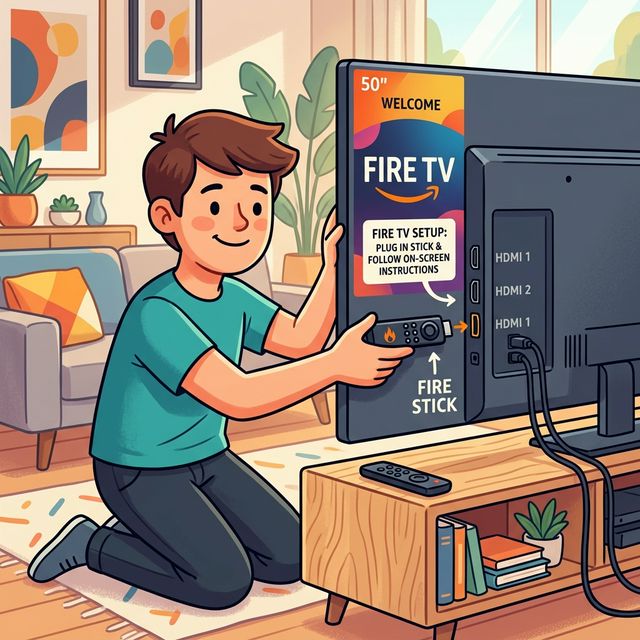
How to Set Up IPTV on Any Device — Step-by-Step Guide
One of the most common questions from people considering IPTV is: how hard is the setup? The answer is surprisingly simple. If you can download an app and enter a username and password, you can set up IPTV on virtually any device in under five minutes. This step-by-step guide covers every major platform — Firestick, Android, Smart TV, iOS, PC, and MAG Box — so you can start streaming no matter what device you use.
What You Need Before Starting
Before setting up IPTV, make sure you have three things ready:
- An active IPTV subscription — Golden IPTV Pro provides credentials instantly after purchase
- Your login credentials — Username, Password, and Server URL (sent via email)
- A compatible device with internet access — Firestick, Smart TV, Android, iOS, PC, or MAG Box
How to Set Up IPTV on Amazon Firestick
The Amazon Firestick is the most popular device for IPTV due to its low cost and excellent performance. Here is how to get started:
- Step 1: From the Firestick home screen, search for and install the Downloader app
- Step 2: Go to Settings, then My Fire TV, then Developer Options, and enable Install Unknown Apps for Downloader
- Step 3: Open Downloader and enter the URL for your preferred IPTV player (we recommend IPTV Smarters Pro or TiviMate)
- Step 4: Install the downloaded app and open it
- Step 5: Select Login with Xtream Codes API and enter your Username, Password, and Server URL
- Step 6: Wait a few seconds for channels to load, then start watching
How to Set Up IPTV on Android Devices
Android phones, tablets, and TV boxes make IPTV setup effortless. Download IPTV Smarters Pro from the Google Play Store or directly from the developer's website. Open the app, choose the Xtream Codes login option, and enter your Golden IPTV Pro credentials. The entire process takes about two minutes. For Android TV boxes, the process is identical — the Google Play Store is available on most Android TV devices.
How to Set Up IPTV on Smart TVs (Samsung and LG)
Samsung and LG Smart TVs use their own app stores. Download an IPTV player like Smart IPTV, Set IPTV, or Net IPTV from your TV's app store. Once installed, the app displays a MAC address on screen. Send this MAC address to Golden IPTV Pro support via email or live chat, and your subscription will be activated on the TV within minutes. Alternatively, if your Smart TV runs Android TV, you can use the standard Xtream Codes method.
How to Set Up IPTV on iOS (iPhone and iPad)
For Apple devices, search the App Store for Smarters Player Lite (the iOS-compatible version of IPTV Smarters). Install the app, select Login with Xtream Codes API, and enter your credentials. The app supports both live TV and VOD content. For EPG, simply tap Install EPG within the app settings — no URL needed.
How to Set Up IPTV on Windows PC and Mac
For desktop streaming, download IPTV Smarters Pro directly from the developer's website — there are dedicated versions for both Windows and Mac. Install the application, enter your Xtream Codes credentials, and you have a full TV experience on your computer. Alternatively, you can use VLC Media Player with an M3U playlist link for a lightweight option.
How to Set Up IPTV on MAG Box
MAG Boxes use a portal-based system. Find the MAC address on the bottom of your MAG device and send it to Golden IPTV Pro support. After activation, navigate to Settings, then System Settings, then Servers, then Portals on your MAG Box. Enter the portal URL provided by support, reboot the device, and your channels will load automatically.
Troubleshooting Common Setup Issues
If your channels do not load after entering credentials, check these common fixes: verify your username and password are entered correctly with no extra spaces, ensure your internet connection is stable with at least 10 Mbps speed, restart the IPTV player app, and if problems persist, contact Golden IPTV Pro's 24/7 support team via WhatsApp for immediate assistance.
Frequently Asked Questions About IPTV Setup
How long does IPTV setup take? The entire process takes 2 to 5 minutes on any device. The longest part is downloading the player app.
Do I need a special device for IPTV? No. IPTV works on devices you likely already own — a Firestick, Smart TV, phone, tablet, or computer. The most popular choice is the Amazon Firestick due to its low cost and portability.
What is the best IPTV player app? TiviMate and IPTV Smarters Pro are the two most popular and reliable IPTV player apps. Both support Xtream Codes login, EPG guides, and organized channel categories.
Start Streaming in Minutes
Setting up IPTV is far simpler than most people expect. No technicians, no special equipment, no waiting. Visit Golden IPTV Pro's pricing page, choose your plan, and you will have your login credentials within minutes. Pick the guide above for your device, follow the steps, and enjoy 29,500+ live channels and 200,400+ movies on demand.
Ready to experience reliable streaming?
Explore our subscription plans with enterprise-grade infrastructure and 24/7 technical support.
View Subscription Plans