XCIPTV Player Setup Guide (2026): Xtream Codes API Login, EPG Setup & TiviMate Comparison
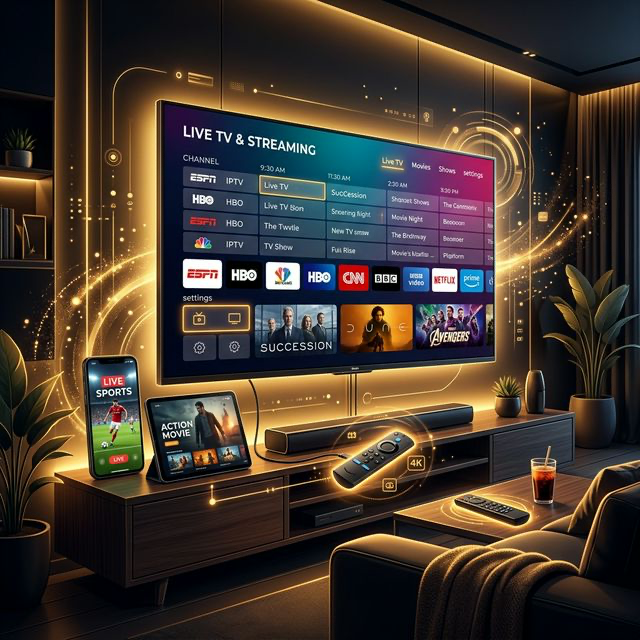
When it comes to streaming IPTV on Android-based hardware—including Amazon Fire TV Sticks, Nvidia Shield, and Google TV devices—finding the right player application makes all the difference between an awkward, clunky experience and a sleek, effortless home theater setup. While TiviMate and IPTV Smarters Pro are widely known, XCIPTV Player has cemented itself as a top-tier contender thanks to its clean modern interface, dual built-in media players, and robust multi-screen viewing features.
Whether you are setting up XCIPTV for the first time or looking to optimize your existing configuration for smooth 4K playback, this comprehensive 2026 setup guide walks you through every step: from installation via Downloader to Xtream Codes API authentication and advanced player tuning.
Key Features That Set XCIPTV Player Apart
XCIPTV is designed specifically for remote-control navigation on big-screen televisions. Its core strengths include:
- •Dual Internal Media Engines: Comes pre-loaded with both ExoPlayer and VLC Player, allowing you to instantly switch codecs if a particular stream has unusual audio or video encoding.
- •Built-in Multi-Screen View: Watch up to 4 live channels simultaneously in a grid layout—ideal for sports fans tracking multiple games at the same time.
- •Seamless EPG Synchronization: Automatically pulls Electronic Program Guide schedules and TV catch-up archives directly from your IPTV provider.
- •Parental Controls & Category Management: Easily hide adult categories, lock channel groups with a PIN, and favorite your most-watched networks.
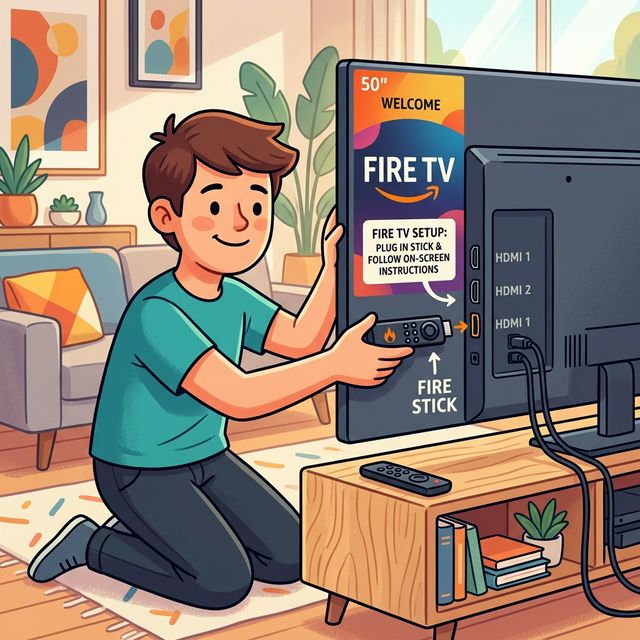
Step 1: Installing XCIPTV Player on Amazon Firestick
Because XCIPTV is an Android APK, installing it on an Amazon Fire TV Stick requires using the Downloader utility:
- •Search for and install the free 'Downloader' app from the Amazon Appstore.
- •Go to Firestick Settings > My Fire TV > Developer Options. (If Developer Options is hidden, go to About and click your Fire TV device name 7 times rapidly to unlock it).
- •Select 'Install Unknown Apps' and toggle Downloader to ON.
- •Open Downloader, enter the official direct download URL or numeric code for the XCIPTV APK, download the installation package, and click Install.
Step 2: Connecting With Xtream Codes API
Once installed, launch XCIPTV. You will see several login options on the main welcome screen. We strongly recommend choosing 'Xtream Codes API' rather than entering a lengthy M3U playlist URL, as Xtream Codes provides faster loading times and automatic EPG synchronization.
- •Server URL / Portal: Enter the server URL provided in your Golden IPTV Pro activation email (e.g., http://server-domain.com:port).
- •Username: Enter your assigned account username.
- •Password: Enter your unique account password.
- •Click 'Sign In'. XCIPTV will authenticate your credentials, download your assigned channel categories, and populate the live TV, movie, and series catalogs.
Step 3: Optimizing Playback & Audio Settings
To ensure flawless playback on 4K 60 FPS feeds and prevent audio desynchronization, apply these quick adjustments within the XCIPTV Settings menu:
- •Player Selection: In Settings > Player, keep Live TV set to ExoPlayer for ultra-fast channel zapping. If you encounter a channel with no sound (common with multichannel AC3/EAC3 audio), toggle the player to VLC.
- •Hardware Decoding: Ensure Hardware Acceleration (HW+) is enabled to offload video processing to your streaming stick's GPU.
- •EPG Update Frequency: Set EPG updates to 'Daily' so your TV guide always reflects the latest program schedules without manual intervention.
XCIPTV vs. TiviMate: Which Player Is Right for You?
Both XCIPTV and TiviMate are stellar applications, but they cater to slightly different preferences. TiviMate excels at providing a traditional, cable-box-like Electronic Program Guide with extensive customization for power users. XCIPTV, on the other hand, offers a more modern media-hub interface with prominent movie posters, built-in VLC player support, and completely free multi-screen viewing without requiring a premium license.
Frequently Asked Questions
Does XCIPTV Player include TV channels? No. XCIPTV is strictly a media player application. To stream live TV, sports, and movies, you need an active subscription from a provider like Golden IPTV Pro.
Can I use XCIPTV on multiple devices? Yes. You can install XCIPTV on as many devices as you own; your ability to stream simultaneously depends on whether you have a 1-device, 2-device, or 3-device Golden IPTV Pro plan.