How to Install IPTV Smarters Pro on Firestick: Step-by-Step 2026 Guide
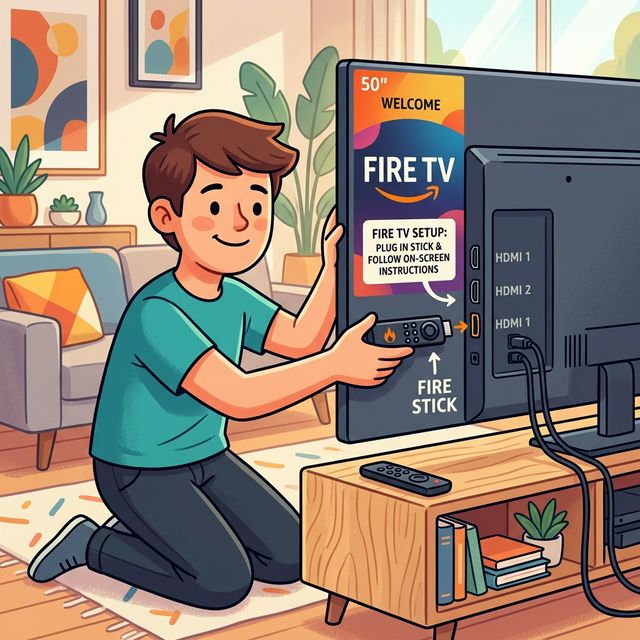
IPTV Smarters Pro is one of the most popular IPTV player apps for the Amazon Firestick because its login screen is simple and its menus are organized into clear Live TV, Movies, Series, and Catch-Up sections. The catch is that it is not listed in the Amazon Appstore, so you need to sideload it. This guide shows exactly how to install IPTV Smarters Pro on a Firestick, Fire TV Stick 4K, or Fire TV Cube, how to log in with your Golden IPTV Pro details, and how to use the app once it is set up.
IPTV Smarters Pro is only a player: it does not include any channels. You connect it to your own IPTV subscription, and the app displays the channels, movies, and TV guide that come with your plan. The whole process takes about 5 to 10 minutes.
What You Need Before You Start
- •An Amazon Firestick, Fire TV Stick 4K / 4K Max, or Fire TV Cube connected to the internet.
- •Your IPTV login details (username, password, and server URL) from your Golden IPTV Pro activation email.
- •About 100 MB of free storage on the Firestick.
- •Your Fire TV remote.
Step 1: Install the Downloader App
Downloader is a free app in the Amazon Appstore that lets you download and install APK files on your Firestick. From the Fire TV home screen, go to Find > Search, type "Downloader", select the orange Downloader app by AFTVnews, and click Download (or Get). Wait for the installation to finish, but do not open it yet.
Step 2: Turn On Developer Options
On newer Fire TV software, Developer Options are hidden by default. Go to Settings > My Fire TV > About, highlight your device name (for example "Fire TV Stick 4K"), and press the select button on your remote 7 times until you see the message "You are now a developer". Press back and you will now see Developer Options in the My Fire TV menu.
Step 3: Allow Downloader to Install Apps
Go to Settings > My Fire TV > Developer Options > Install Unknown Apps, select Downloader, and switch it to ON. On older Firestick models this setting is called "Apps from Unknown Sources". Fire OS will show a warning about third-party apps; this is normal for any app installed outside the Appstore. Only install the player from its official source.
Step 4: Download IPTV Smarters Pro on Firestick
Open Downloader and allow it to access files if asked. In the URL box on the Home tab, enter the official IPTV Smarters Pro download link for Fire TV, which is published on the developer's website (iptvsmarters.com) under Downloads. Click Go, wait for the download to complete, and select Install when the installer opens. When installation finishes, choose Done, then select Delete twice to remove the APK file and free up storage on your Firestick.
Step 5: Log In With Xtream Codes API
Open IPTV Smarters Pro from Settings > Applications > Manage Installed Applications, or hold the Home button and choose Apps. Accept the terms of use, then select "Login with Xtream Codes API" (it is faster than M3U and loads the TV guide automatically). Fill in the fields as follows:
- •Any Name: a label for your profile, for example "Golden IPTV Pro".
- •Username: the username from your activation email.
- •Password: the password from your activation email.
- •URL: the full server URL including http:// and the port number, exactly as written in your email.
- •Click Add User. The app downloads your live channels, movies, series, and EPG, which can take a minute the first time.
Step 6: Move IPTV Smarters to Your Home Screen
Sideloaded apps do not appear on the home row automatically. Press and hold the Home button, select Apps, highlight IPTV Smarters Pro, press the menu button (three lines), and choose Move to Front. The app now sits on your home screen for one-click access.
How to Use IPTV Smarters Pro
Once you are logged in, the dashboard shows Live TV, Movies, Series, and Catch Up. Open Live TV to browse channel categories, and press the menu button on a channel to add it to Favorites. The Install EPG option on the dashboard loads the full TV guide so you can see what is on now and next. Inside Settings you can enable parental controls, change the stream format, choose an external player such as VLC or MX Player, and turn on Automation to refresh channels and EPG daily.
How to Install IPTV Smarters Pro on a Smart TV
On Android TV and Google TV models (including many Sony, TCL, Hisense, and Philips televisions), search for IPTV Smarters Pro in the Google Play Store and install it like any other app, then log in with the same Xtream Codes API steps above. On Samsung (Tizen) and LG (webOS) TVs, availability depends on your TV's model and region. If you cannot find it in the TV's app store, use a TV-native player such as IBO Player, or plug a Firestick into the TV and follow this guide. Our device onboarding walkthrough covers each platform in detail.
Troubleshooting IPTV Smarters on Firestick
- •"Invalid username or password": check that the URL starts with http:// and includes the port, and that there are no spaces before or after your username and password.
- •"Install blocked" or the installer does not open: make sure Install Unknown Apps is ON for Downloader in Developer Options.
- •Not enough storage: uninstall unused apps and delete leftover APK files from the Downloader Files tab.
- •Channels buffer or freeze: restart the Firestick, use a wired Ethernet adapter or 5 GHz Wi-Fi, and clear the app cache in Settings > Applications. Our Firestick buffering guide covers more fixes.
Frequently Asked Questions
Is IPTV Smarters Pro free? The player app itself costs nothing to install, but it has no content of its own. You need an IPTV subscription to watch channels, movies, and series in it.
Can I use IPTV Smarters Pro on more than one device? Yes. You can install the app on as many devices as you like, but the number of devices that can stream at the same time depends on your plan. Golden IPTV Pro plans support 1 to 5 simultaneous connections.
Is IPTV Smarters or TiviMate better for Firestick? IPTV Smarters Pro is easier for beginners and works on more platforms, while TiviMate offers a more cable-like TV guide and advanced features. Both work with Golden IPTV Pro using Xtream Codes API login.
Start Streaming on Your Firestick
With IPTV Smarters Pro installed and your Xtream Codes details entered, your Firestick is ready to stream live TV, sports, and on-demand movies in up to 4K. If you do not have login details yet, choose a Golden IPTV Pro plan and your credentials will be delivered right after payment.